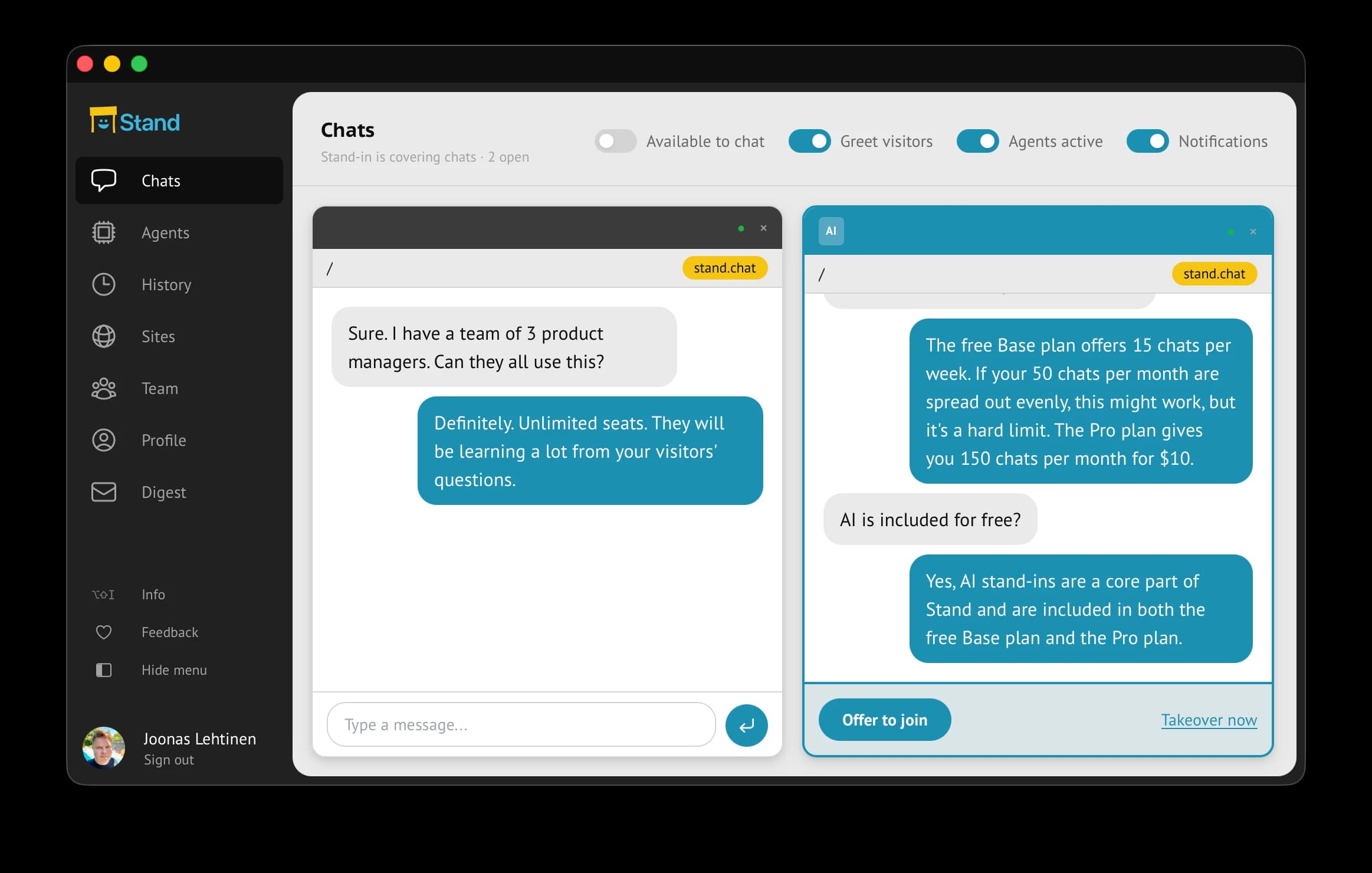
The dashboard gives you the transcript, captured details, labels, and handoff state before you type. You can watch several stand-in chats in parallel, open the thread that matters, and decide whether to stay silent, offer to join, or take over.
The first human message should prove you were listening: refer to the question, constraint, or comparison already in the conversation.
Header control
What it controls
How to read it during handoff
Header controlAvailable to chat
What it controlsRoutes new visitors to you while you are online and below your concurrent chat limit.
How to read it during handoffTurn this on only when you are actually watching. If it is off, Stand-in coverage can still handle chats when Agents active is on.
Header controlConcurrent limit
What it controlsAppears when you are available and sets how many human chats you can handle at once.
How to read it during handoffSet this to honest attention, not optimism. When you hit the limit, new visitors can be covered by eligible agents.
Header controlGreet visitors
What it controlsControls the opening greeting bubble and greeting message shown to visitors.
How to read it during handoffUse it when a proactive invitation helps. Click the label to edit the greeting instead of treating it as only an on/off switch.
Header controlAgents active
What it controlsGlobally enables your enabled AI agents to cover eligible sites.
How to read it during handoffThis is what lets the header say Stand-in is covering chats while you are unavailable or at capacity.
Header controlNotifications
What it controlsControls browser and push notification setup for Stand alerts.
How to read it during handoffKeep this on when label matches or active chats should pull you back into the dashboard.