Branding and identity
Avatars
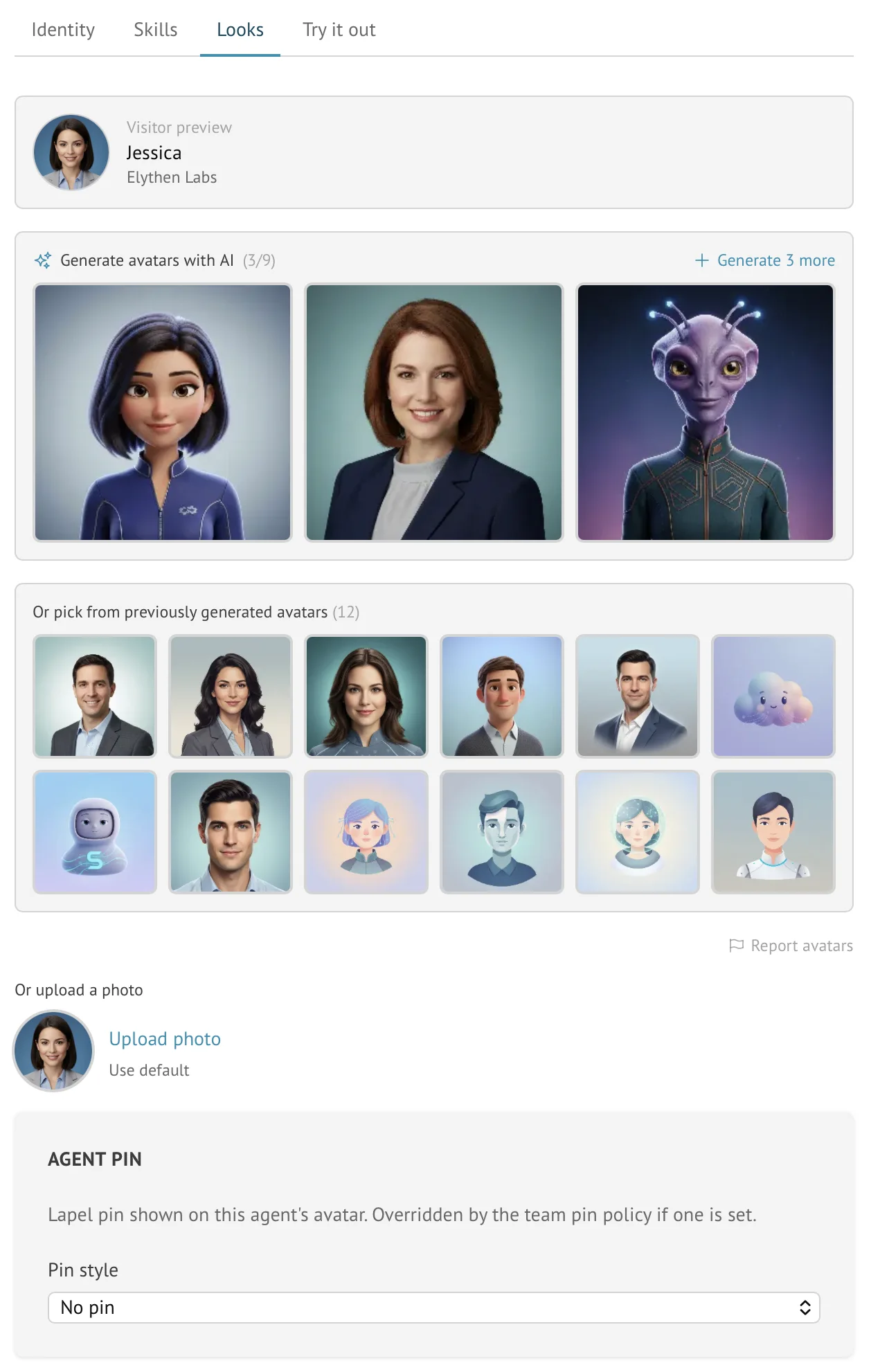
Avatars give reps and AI Stand-ins a recognizable visual identity through uploaded, generated, cropped, optimized, or preserved animated images.
- Availability
- All plans
- Configured in
- Dashboard → Profile → avatar; or Dashboard → Stand-ins → select Stand-in → Edit → Looks
- Category
- Branding and identity
- Reference status
- Current
Before you begin
Plan availability: All plans; Stand-in image generation depends on the Stand-in appearance workflow.
Prerequisite: A supported image file, or a Stand-in with access to generated appearance candidates.
Key boundary: Animated uploads are preserved rather than cropped or optimized and must meet the stricter animated-image limits shown in the uploader.
Avatar sources
- A rep can upload an image from Profile.
- A Stand-in can use generated candidates, select an existing organization avatar, or upload where the appearance flow permits.
- The organization avatar pool allows reuse of stored Stand-in visuals without regenerating the same concept.
- A fallback mascot appears when no usable avatar has been configured.
Static-image processing
Common static formats enter the crop workflow, are normalized to a square presentation, resized, and stored in an optimized web format. The preview shows the area visitors will see before the upload is committed.
Animated GIF and WebP rules
- Valid animated GIF and WebP avatars keep their animation and original bytes.
- They must be square, between 64×64 and 256×256 pixels, at most 256 KiB, at most 300 frames, and at most 10 seconds per loop. A 128×128 file below 100 KiB is recommended for normal widget use.
- Each animation frame must last at least 30 milliseconds.
- Animated images bypass cropping and optimization, so the confirmation preview is exactly what visitors download.
- A single-frame GIF uses the static-image path. WebP files with an animation container are validated as animations even when they contain one frame; ordinary non-animated WebP uses the static path.
Prepare an animation
- Animated avatar preparation and command-line examplesOptimize a source file before uploading; Stand preserves accepted animations without resizing or re-encoding them.
Set or change an avatar
- Open the rep Profile or the Stand-in’s Looks tab.
- Choose an upload or generated candidate.
- For a static image, position the crop and confirm it.
- For an animated image, review dimensions, file size, frame count, and duration in the confirmation dialog.
- Save the profile or Stand-in changes and verify the visitor-facing preview.
Reuse and safety boundaries
- Rep and Stand-in avatar choices are separate; updating one does not silently replace the other.
- Malformed, oversized, undersized, non-square, excessively fast, or structurally unsafe animations are rejected with guidance.
- Generated candidates can be reported from the appearance workflow; reporting does not automatically select a replacement.
- An active circle lapel-pin policy can be used as a Stand-in avatar where that option is enabled.
Example
The screen below shows the feature in its normal Stand context. Labels and surrounding controls may vary with account state and plan.