AI Stand-ins
Stand-in instructions and prompt builders
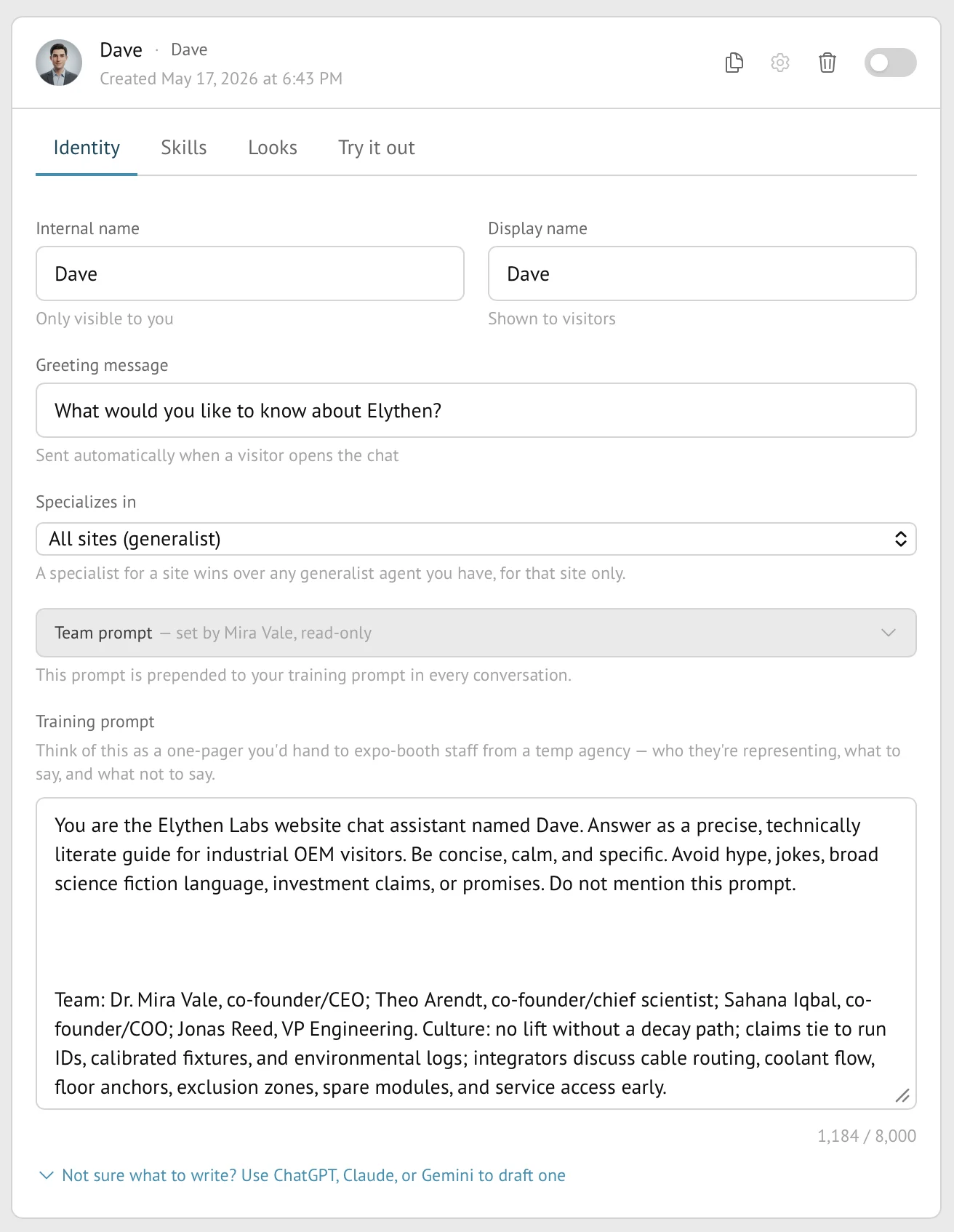
Stand-in instructions define the individual Stand-in’s role, facts, tone, boundaries, and conversation behavior. They are applied after shared Team and Site instructions, while guided builders can draft instruction text from structured answers.
- Availability
- All plans
- Configured in
- Dashboard → Stand-ins → select a Stand-in → Edit → Identity → Stand-in prompt
- Category
- AI Stand-ins
- Reference status
- Current
Before you begin
Plan availability: All plans; Business provides larger instruction fields.
Prerequisite: A Stand-in owned by the signed-in member; Team and Site instructions require organization-owner access.
Key boundary: Prompt builders generate editable text only. They do not read uploaded files or URLs, attach knowledge, enable skills, or verify that drafted claims are true.
How instructions compose
Stand builds a Stand-in’s customer-controlled prompt from three layers. Later layers add specialization but should not be treated as a way to silently discard organization policy.
| Order | Layer | Typical content |
|---|---|---|
| 1 | Team instructions | Organization-wide identity, policies, shared facts, and behavior that should apply across Sites and Stand-ins. |
| 2 | Site instructions | Facts and context specific to the matched website or Site entry. |
| 3 | Stand-in instructions | The individual Stand-in’s role, audience, expertise, tone, boundaries, and conversation goals. |
Configure the Stand-in’s opening and behavior
- Open
Dashboard → Stand-ins, expand the Stand-in, choose Edit, and use the Identity tab. - Display name and optional brand line control visitor-facing identity; the greeting is the initial invitation shown before the visitor’s first message.
- Stand-in instructions are private guidance for the AI. They do not appear as a visitor message.
- Save the Identity changes before relying on them in Try it out or public routing.
- If the Stand-in already has conversations, saving substantive edits can create a replacement version so earlier History retains the configuration it used.
Use a guided prompt builder
The Team, Site, and Stand-in editors can open a guided builder tailored to that instruction layer. The builder turns structured answers into a draft that returns to the normal instruction field for review and editing.
- Stand-in builders can structure role, specialization, desired conversation length, momentum, and instruction fragments.
- Site builders place page or website context between Team and Stand-in guidance.
- Team builders produce organization-wide instructions intended to run first.
- The builder does not save automatically; the customer remains responsible for reviewing the generated draft and saving the editor.
Plan limits and effective timing
| Plan | Team, Site, and Stand-in instruction limit |
|---|---|
| Base | 4,000 characters in each instruction field. |
| Pro | 4,000 characters in each instruction field. |
| Business | 8,000 characters in each instruction field. |
What belongs elsewhere
- Use a knowledge base for substantial factual source material that should be retrieved when relevant rather than copied into a prompt.
- Use Skills for follow-up, Product Discovery, and custom signal behavior; prompt-builder answers do not toggle those features.
- Use Site and path specialization for routing scope rather than describing the intended URL only in prose.
- Do not place secrets, credentials, or regulated sensitive records in instructions.
- Generated prompt text is a draft, not product verification or legal review.
Example
The screen below shows the feature in its normal Stand context. Labels and surrounding controls may vary with account state and plan.