Stand Guidebook
Chapter 15 of 15
Field guide
What to learn in this chapter
Install the plugin, create your Stand account and connect it in a Stand window, brief your AI assistant, pick the pages it reads, and go live. The Overview then shows whether chat is live, who answers, and which pages changed since they were read. Then put Stand where visitors decide: a Stand card on your pricing page, Chat with us in your menu, or a greeting for one page.
Need an exact capability definition, plan requirement, or limitation? Browse the Feature Reference.
Install the plugin
Download, upload, activate.
You need WordPress 6.7 or newer, PHP 7.4 or newer, and permission to install plugins. On WordPress.com, your plan must support plugin uploads. If you don’t see Plugins → Add New Plugin, ask the person who manages your website or hosting to install it for you.
Download Stand Chat – AI Chatbot & Live Chat below. Keep the file as stand-chat-1.0.0.zip; you do not need to open or unzip it. The plugin is not yet listed in the WordPress directory, so searching for it inside WordPress will not find it.
Direct download from Stand
Stand Chat 1.0.0 · Beta
Save the ZIP on your computer, then upload it to WordPress using the steps below.
In your WordPress dashboard
- Open Plugins → Add New Plugin, then choose Upload Plugin at the top.
- Choose the stand-chat-1.0.0.zip file you downloaded and select Install Now.
- Select Activate Plugin, then open Stand Chat → Get started in the left menu.
- Continue below to create or connect your Stand account. You do not need an API key or an AI provider account.
Get started
Choose how to start.
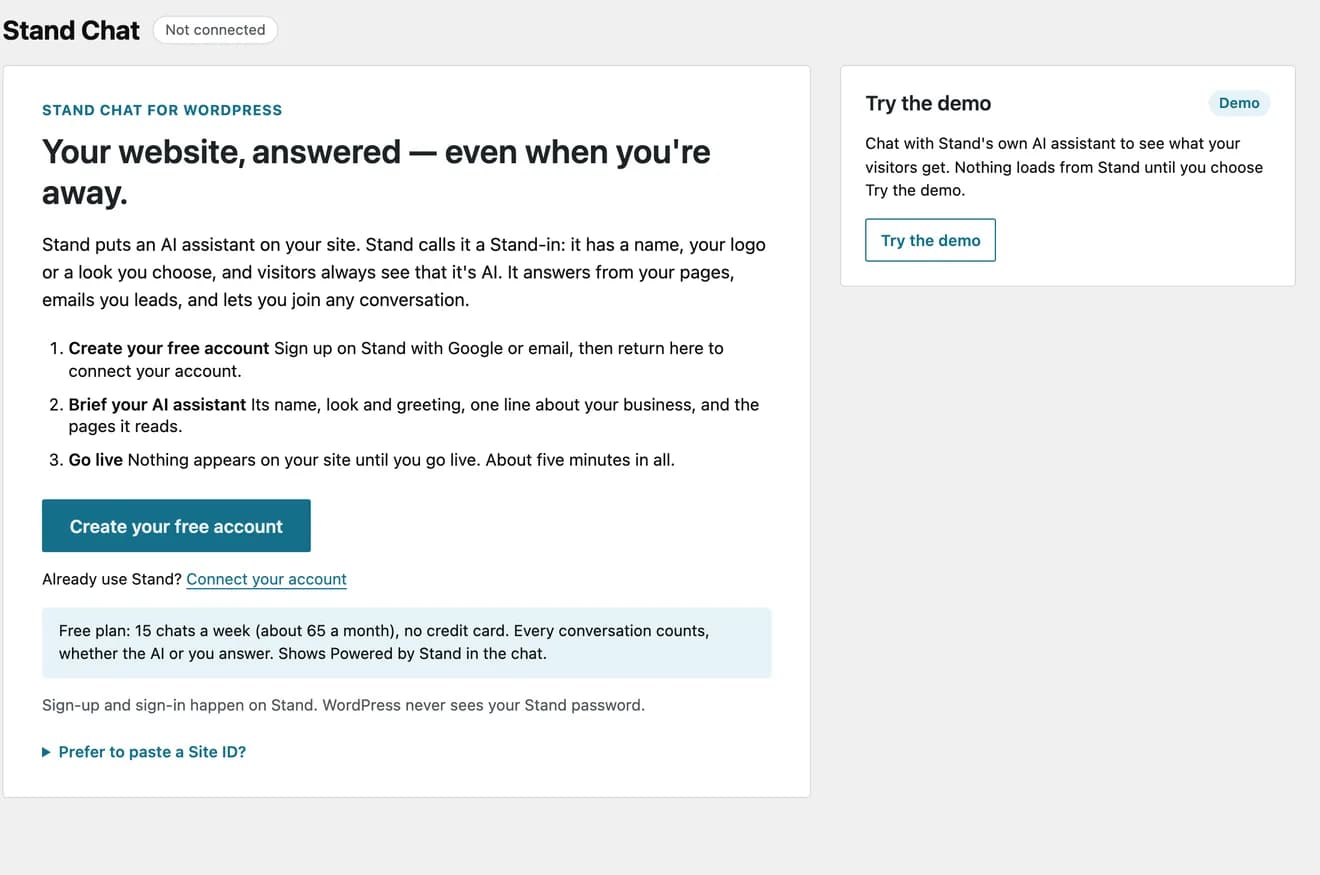
New to Stand? Choose Create your free account, then follow the setup below. You can create your account and set up your AI assistant from here; there is no code to paste.
If you already use Stand, connect your account to manage your AI assistant, its pages and chat settings from WordPress. Prefer to paste a Site ID? is for a site already set up in the Stand app: copy its Site ID from Sites to add the chat. You can connect your account later.
Step 1
Create your account, then connect it.
Select Create your free account. Stand’s sign-up opens on stand.chat in a new tab: sign up with Google, or with your email, then open the setup link Stand emails you to verify your email and create your password. Back in WordPress, select Connect your account under After creating your Stand account, or Open sign-up again if you closed the tab. If you already use Stand, select Connect your account on Get started. A Stand window opens on Stand’s sign-in page. Sign in there; WordPress never sees your Stand password. If Stand asks for a code, enter the one WordPress shows.
Stand lists what Stand Chat for WordPress may do and asks you to allow it. When the window says Signed in to Stand, WordPress closes it and continues by itself. A new Stand account first finishes its profile in the Stand app: WordPress shows Finish your Stand profile with Open Stand until you have, then carries on.
WordPress uses the Stand Site with the Site ID you pasted before, or your Site for this WordPress address. If there is none, it adds your site to Sites in Stand, named after your WordPress site. If your organization has more than one Site for this address, connecting stops and asks which: paste that Site’s ID under Prefer to paste a Site ID?, then select Connect your account again. If a Site ID saved before isn’t one of them, the message names it: select Remove Site ID first. Connect from your live site. A staging site without your Site ID adds a Site for its own address; a copy of your database uses your live Site, and chat stays hidden there.
The connection acts as you, for every WordPress administrator on the site; Settings → Connection shows who that is. The permissions you allow cover your Stand account, but the plugin changes only this Site, your AI assistants for it, the knowledge base it made and your I chat here for this Site. It turns on Stand-in coverage only after asking, and it can’t read your conversations or make you Available. If a colleague should manage Stand as themselves instead, they select Reconnect in Settings → Connection. Setup starts again for them, because AI assistants and the pages they read belong to each person, unless they already have an AI assistant for this Site. Your AI assistant stays as it is in Stand. On Base, where the organization has one knowledge base, picking their pages fails while yours exists.
Stand ends the connection 30 days after you connect, used or not. Settings → Connection shows the date under Reconnect by, and the plugin reminds you during the last week. The chat on your site keeps working without a connection; reconnect to manage Stand from WordPress again.
Step 2
Brief your AI assistant in a few lines.
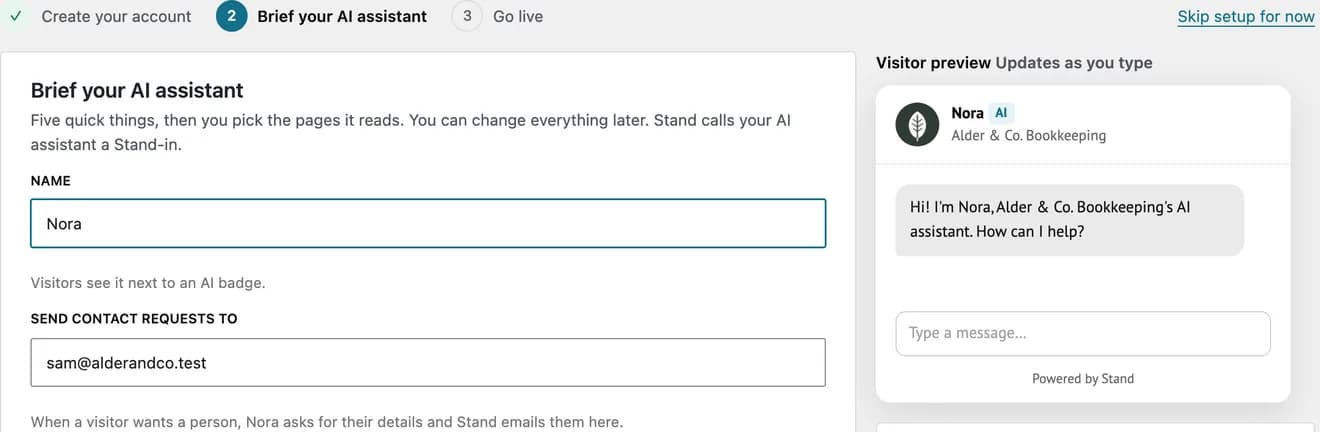
Give it a name visitors can address, such as Nora. Visitors always see an AI badge next to it, whatever look you choose. Check Send contact requests to: when a visitor wants a person, Nora asks for their details and Stand emails them there.
The greeting is the first thing visitors read when they open the chat. Say who it is and what it can help with: “Hi! I’m Nora, Alder & Co.’s AI assistant. Ask me about our services or prices.” Under What your business does, write the one line you would tell a new colleague, such as “Bookkeeping, payroll and tax prep for small businesses”.
The plugin drafts the Stand-in prompt from that line, your main menu and your Contact page, using the same Help me write prompt as the Stand app. Open More options to read the full prompt and edit it: add facts visitors often ask about, and say where Nora should send people, such as your booking page. More options also sets the brand voice and reply length, and can limit Nora to one page and its child pages. The visitor preview updates as you type.
Step 2, continued
Pick the pages it reads.
Your front page, the pages in your main menu and common pages such as About, Services, Pricing, FAQ and Contact are already ticked, up to 10. You can pick more, up to your plan’s page limit: 10 pages on Base, 200 on Pro. Keep the pages that answer what visitors ask before they contact you, and untick pages that would mislead, such as old offers.
Each page is read the way visitors see it, without following its links, so pick the pages themselves rather than a section front page. Nora can answer right away and gets more precise as pages are read, so you can go on to step 3 meanwhile. Drafts, password-protected pages and pages behind a login can’t be read.
Step 3
Choose who answers, then go live.
Choose who answers new chats. You first, Nora when you’re away suits a team that answers some chats: new chats go to you, or a teammate who chats on this site, whoever is Available in the Stand app with the fewest open chats, and Nora answers the rest. Nora answers every chat suits a site nobody watches. If you limited Nora to one page and its child pages, that choice is refused unless another AI assistant answers on every page, since chats elsewhere would reach nobody. Likewise, while Nora answers every chat, Nora can’t be limited to some pages or turned off unless another AI assistant answers on every page. Only you keeps Nora off: chat shows only while you, or a teammate who chats on this site, are Available. If a teammate’s AI assistant also answers on this site, Only you is refused, since only they can turn it off.
Select Go live. The plugin turns on the chat and, unless you chose Only you, Nora. It then loads your home page from the WordPress server, or the first page that shows chat if Where chat appears leaves the home page out, to check that the Stand script is there once, with your Site ID; the confirmation and the Overview show what it found. Open your site in a private window, and accept its cookie banner if chat waits for cookie consent: while someone can answer, the chat button appears in the corner, unless Corner chat button is off under Stand Chat → Chat widget, and Stand marks your Site Installed within a minute of that first real page view.
To try Nora before your visitors do, select Try it out in Stand. Test chats happen under Stand-ins in the Stand app, and they don’t count as visitor chats.
Check after going live
- The status shows Chat is live on your domain.
- A private window shows the chat button on your site, if Corner chat button is on, once you accept cookies there when chat waits for consent.
- Nora answers a test question with an answer from your pages.
- A contact request reaches the email you chose.
Day two
Read the Overview.
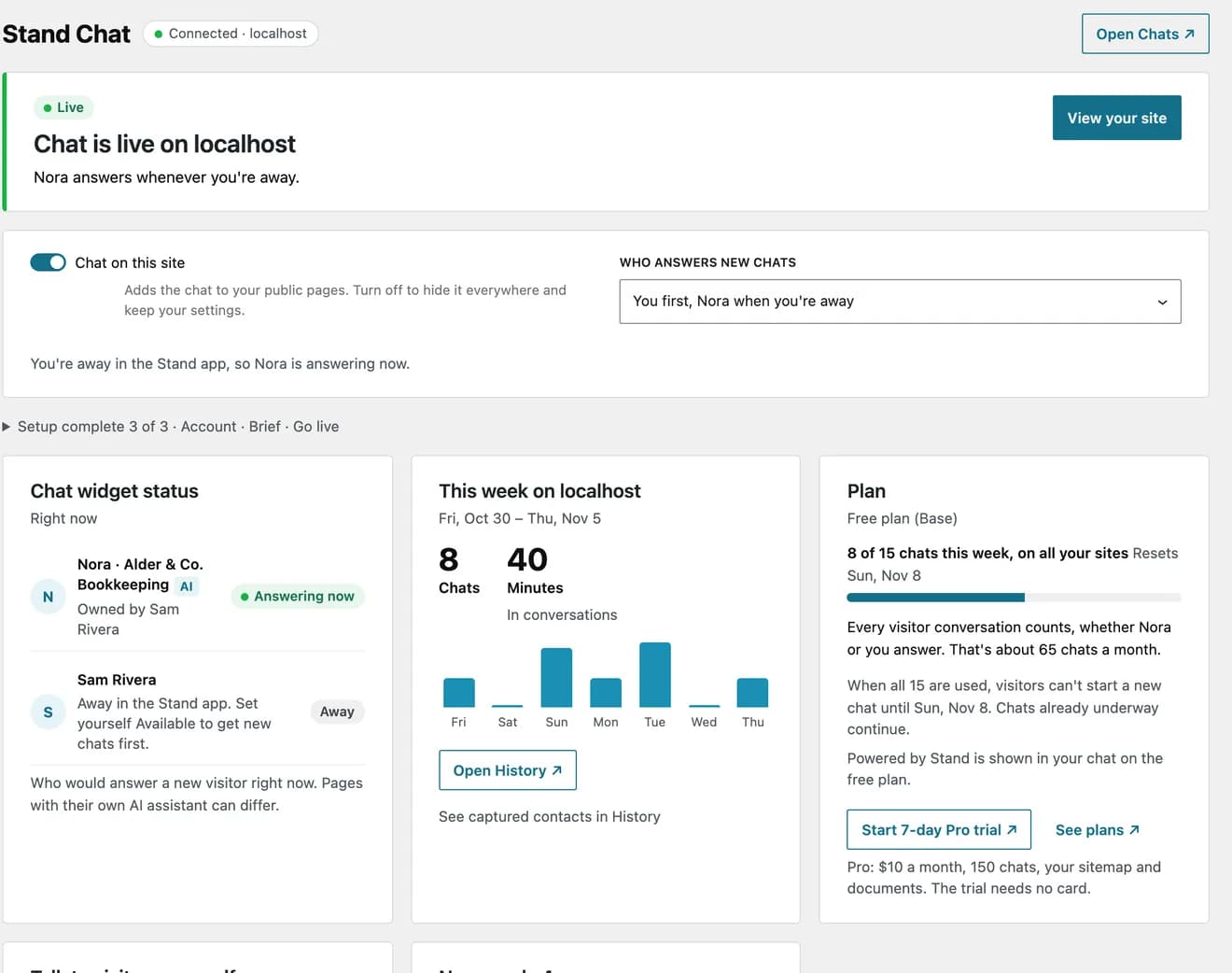
The status at the top says whether chat is live and, if not, why, with one action that fixes it: Waiting for installation, Chat is hidden on this environment, No one is answering yet, New chats are paused, Stand is off on this site, Stand can’t show this site or Reconnect needed.
Chat widget status shows who would answer a new visitor right now. This week counts chats and minutes in conversations on this site. The Plan card shows the chats used on all your sites and when they reset; every conversation counts, whether Nora or you answer. Conversations themselves are in Chats in the Stand app, where you can join any of Nora’s chats with Takeover now or Offer to join.
Keep it current
Keep what it reads up to date.
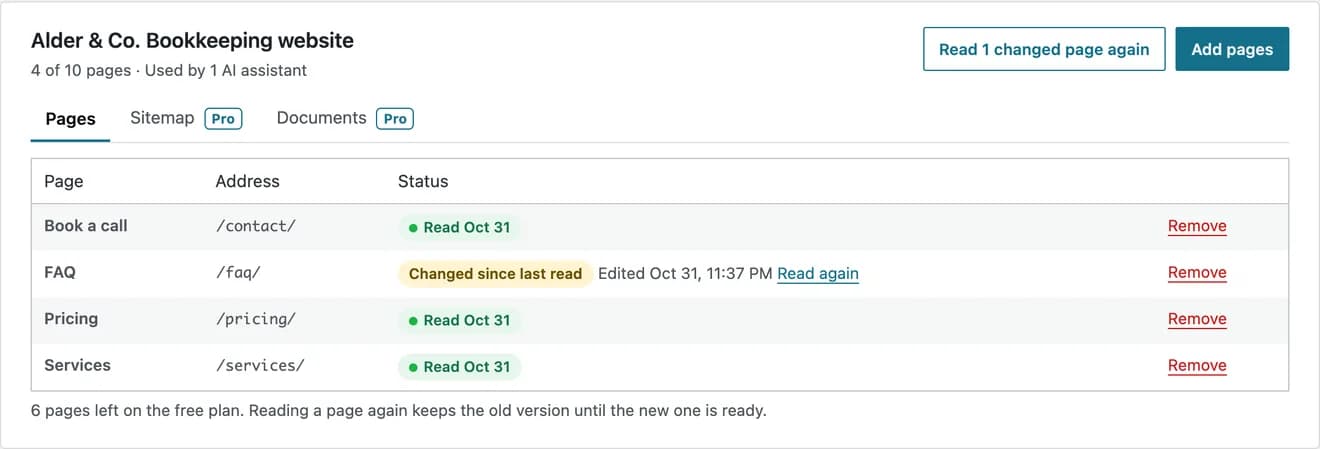
When you edit a page Nora reads, the Knowledge screen and the Overview mark it Changed since last read. Read again after publishing is on by default: a few minutes after you publish an update, Stand reads the new version, and the old one stays in use until the new one is ready.
Use What does Nora find? to search the pages read so far, for example with a question visitors ask. If nothing useful comes back, add the page that answers it or write the answer on your site. Couldn’t read shows Stand’s reason; Try again reads the page again.
In your pages
Choose the pages that show chat.
The corner button is a start. Inside your pages, Stand can invite the question a visitor is about to have, at the place they have it: a Stand card on your pricing page, a Chat with us link in your menu, or a greeting for one page.
Stand Chat → Chat widget → Where chat appears decides which pages get Stand at all: All public pages, All public pages except…, or Only on pages I choose. Leave out pages where chat would get in the way, such as a checkout or a careers page. Pages left out load no Stand script, unless you add a Stand card, button or chatbox to one; then Stand loads for those, without the corner button.
If you put Stand inside your pages, consider turning off Corner chat button. Visitors then start chats from the cards, buttons, chatboxes and links you placed, at the moment they help.
Block editor
Add a Stand card where visitors hesitate.
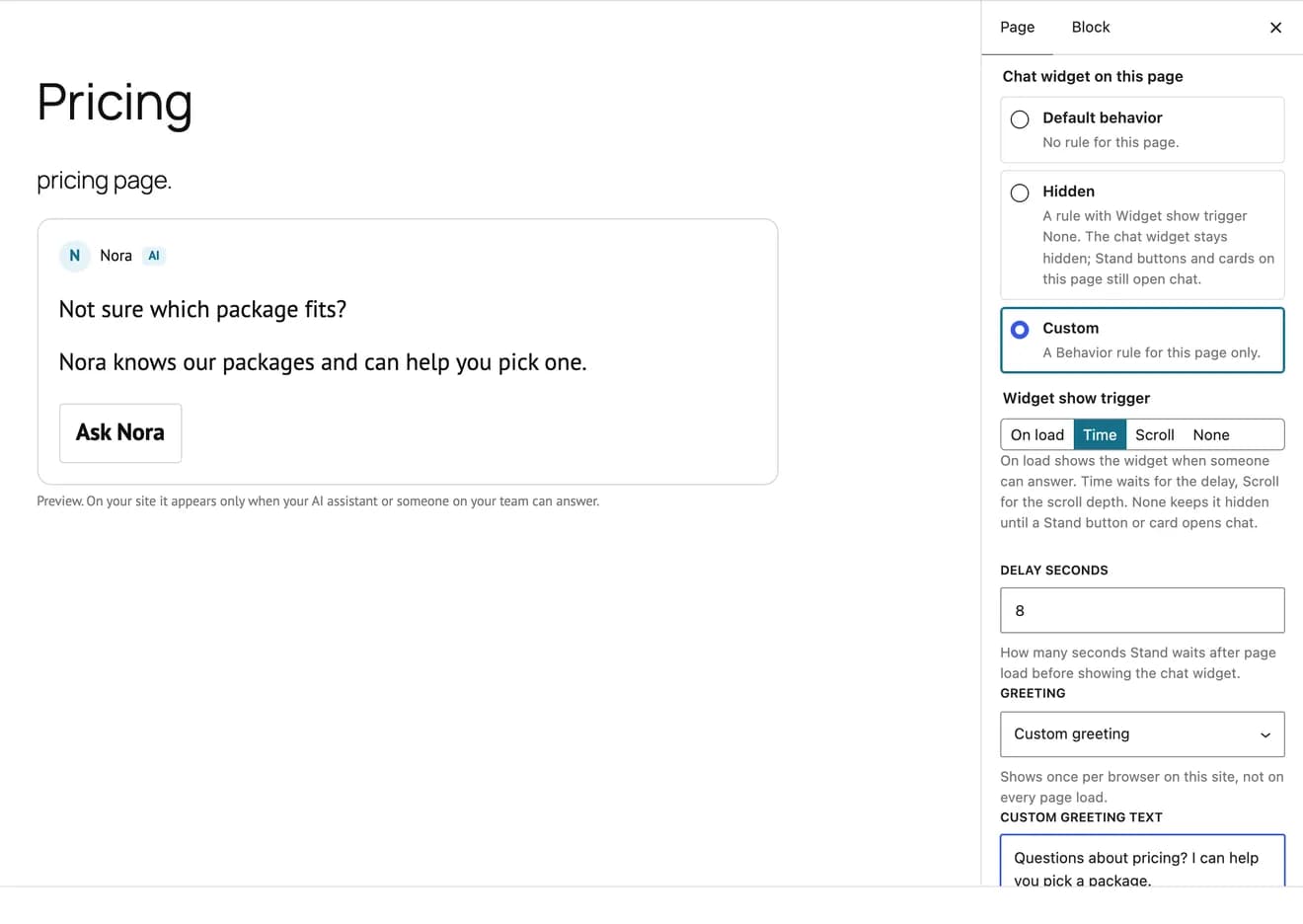
A card is an invitation in your words. On a pricing page, a visitor comparing packages is about to have a question; put the card right after the packages. In the block editor, select the inserter, search for Stand and choose Stand card. Write a heading and a line about what the chat can help with, then set the Action: A button, The whole card, or None.
A message I write sends a first message for the visitor when they click, such as “Which package fits a café?”, so the conversation starts right away. It goes where any new chat goes: under You first, to you or a teammate who chats on this site while one of you is Available, and to Nora otherwise. Show when chooses who must be able to answer: Anyone, A person or The AI assistant. The card stays hidden while no one matching it can answer, so it never invites a chat nobody takes.
Use Greeting to replace the widget’s greeting when the card opens the chat. Extra context for the AI assistant tells Nora where the visitor came from, such as “The visitor is comparing our monthly packages.” It isn’t shown in the chat, but it is in the page’s HTML, so don’t put anything private there. Analytics name is recorded with each chat the card starts, so you can compare placements.
One page at a time
Give one page its own trigger and greeting.
Open the page in the block editor and find the Stand Chat panel on the Page tab of the sidebar. Chat widget on this page offers Default behavior, Hidden and Custom. Custom lets this page wait, for example 8 seconds or until the visitor scrolls halfway, and greet with words for this page: “Questions about pricing? I can help you pick a package.”
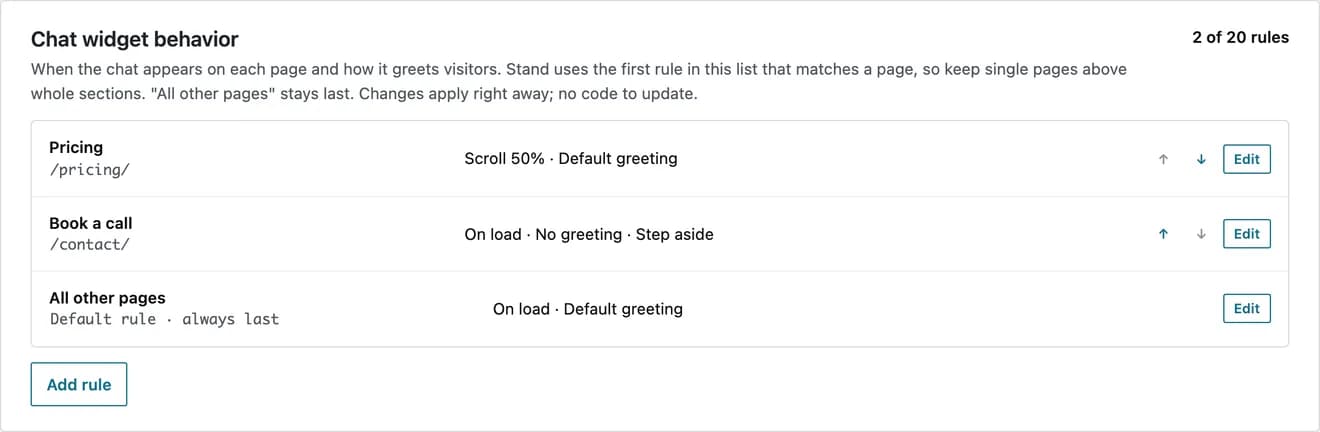
The rule is saved to Stand when you save the page, above any rules that also match it, and it applies to new page views right away. If Stand turns the change down, the editor shows Stand’s reason; save the page again to try again. Hidden keeps the corner widget away from the page, while Stand cards and buttons on it still open chat. Rules need your organization’s owner, a published page and a permalink structure other than Plain.
Stand Chat → Chat widget → Chat widget behavior lists every rule. Stand uses the first enabled rule that matches a page, so keep single pages above whole sections. All other pages stays last.
If your Site’s rules use custom JavaScript, set in Stand, WordPress shows them read-only, on the Chat widget screen and in the panel, with View in Stand. Change them under Sites in Stand; the plugin never writes custom JavaScript.
Classic content
Use shortcodes where blocks don’t fit.
Classic content, widgets and page builders can use shortcodes instead of blocks. They produce the same elements and have the same Show when values: either, rep or standin.
A button
[stand_button label="Ask Nora" greeting="Questions about pricing?"]show_when="rep" shows the button only while a person can answer.
A card with a heading and a first message
[stand_card action="Ask Nora" message="Which package fits a café?"]
<h3>Not sure which package fits?</h3>
<p>Nora knows our packages and can help you pick one.</p>
[/stand_card]
message_field="yes" lets visitors type their own first message instead.
A chatbox
[stand_chatbox greeting="Didn’t find your question? Ask." height="grow"]height takes grow, or a maximum height as a number of pixels, such as 400.
Privacy
Load chat after cookie consent.
If your site asks visitors for cookie consent, open Stand Chat → Settings → Privacy and consent and set Load chat to After the visitor gives cookie consent, then choose the Consent category your banner uses for chat, usually Functional. The plugin waits for that consent in the visitor’s browser, so page caching keeps working, and the chat appears as soon as the visitor accepts, without a reload.
This needs the WP Consent API plugin and a banner that supports it. The settings name your banner when it supports the WP Consent API, and warn when the WP Consent API isn’t active. Add the suggested text from WordPress’s Settings → Privacy → Policy Guide to your privacy policy.
Check consent loading
- WP Consent API is active.
- Your banner supports the WP Consent API.
- The chat stays hidden before consent in a private window.
- The chat appears right after accepting.
Logged-in visitors
Tell your team who logged-in visitors are.
On a site with customer accounts, turn on Tell Stand who logged-in visitors are in Stand Chat → Settings → Privacy and consent and choose the roles to include, such as Customer. Stand then shows the visitor’s display name to your team and links that person’s chats with a private ID made from their WordPress account.
The plugin sends the display name, not the email or password fields from the WordPress account. A display name can itself be an email address, so check your users’ display names before turning this on. The page sends the name from the visitor’s browser, and Stand doesn’t verify it, so don’t treat it as proof of who someone is.
Copies and moves
Keep chat off staging copies.
A staging or local copy whose environment type isn’t production hides the chat by default, so tests don’t reach real visitors or count as chats. To try chat there, choose Show the Stand demo in Settings → Advanced: Stand’s own demo assistant works on any address.
If you clone your database to another address and the copy’s environment type is production, the plugin notices that the WordPress address no longer matches your Stand Site and hides the chat there. On a copy, choose Keep chat off here. A copy of your database that keeps your WordPress security keys is still connected to your live Site, as you: changes on its Stand Chat screens change your live Site, and Disconnect or Reconnect there also ends your live site’s connection. Make changes on the live site. If the site really moved, it needs a Site for its new address: disconnect in Settings → Connection, then connect again from the new address. Because the address doesn’t match, disconnecting also removes the old Site ID and turns the chat off; connecting again uses the Site for the new address, or adds one. Go live, or Chat on this site on the Overview, turns the chat back on.
Plugin updates
Keep the plugin up to date.
This download does not provide automatic plugin updates. Check this page for a newer version; the version installed on your site appears under Plugins → Installed Plugins.
To update, back up your WordPress site, download the newer ZIP from this page, and use Plugins → Add New Plugin → Upload Plugin again. After Install Now, WordPress shows the installed and uploaded versions. Check that the uploaded version is newer, then choose Replace current with uploaded. Your Stand Chat settings stay in place. Do not delete the plugin first: deleting it removes its WordPress settings.
If something is off
Fix the common problems.
Most problems show up as the Overview status. Its action is usually the fix; this table covers the rest.
Questions
Common reader notes
Do I need a Stand account to use the plugin?
Yes. Create a free Stand account during setup, or use a Site ID from an existing Stand account. With a Site ID, you do not need to sign in from WordPress; connecting an account adds setup and management there.
Does every WordPress administrator get access to my Stand account?
Every administrator manages Stand from the plugin’s screens as the Stand user who connected it, for this site only. They can’t read your conversations from WordPress. Another administrator can reconnect as themselves.
What happens if I deactivate or delete the plugin?
Deactivating stops the chat on your pages and keeps your settings. Deleting also asks Stand to end the connection and removes the plugin’s data from WordPress. Your Stand account, Stand-ins, History and the pages Stand read stay in Stand.
Why doesn’t my Stand card appear on the site?
It shows only while someone matching Show when can answer, and only where chat loads. Check Chat widget status on the Overview and Show when on the card. Logged in as an administrator, also check Hide chat for logged-in administrators.
Can I hide the chat on one page but keep a Stand card there?
Yes. Set Chat widget on this page to Hidden in the Stand Chat panel. The corner widget stays away, and the card still opens chat.
Do Stand blocks slow my pages down?
Pages that show chat load Stand’s script once, about 60 KB compressed, in the footer. Pages without chat or Stand elements load nothing from Stand.
Continue the guide