Apps and integrations
WordPress plugin
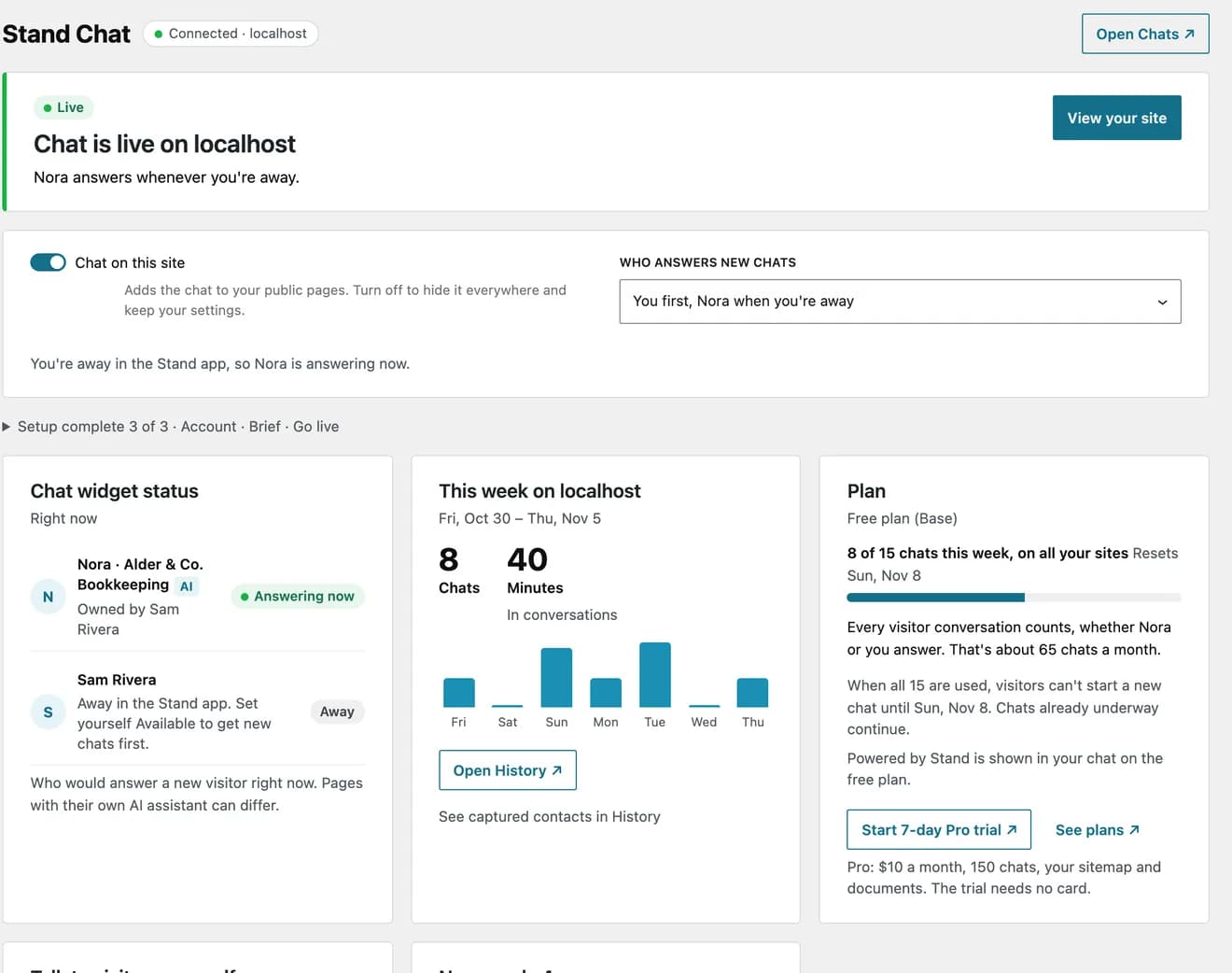
Stand Chat for WordPress runs Stand from WordPress admin. It adds the chat to your pages, sets up an AI Stand-in from your WordPress content, keeps the pages it reads up to date, and adds Stand buttons, cards and chatboxes to the block editor. Conversations stay in the Stand app.
- Availability
- Beta · All plans. Your plan’s limits apply in WordPress as in Stand
- Configured in
- WordPress admin → Stand Chat; the block editor’s Stand blocks and Stand Chat panel
- Category
- Apps and integrations
- Reference status
- Beta
Before you begin
Plan availability: Beta · All plans. Your plan’s limits apply in WordPress as in Stand.
Prerequisite: WordPress 6.7 or newer, PHP 7.4 or newer, and a WordPress administrator. Connecting needs a Stand account and a browser window for Stand’s sign-in; a Site ID copied from Sites in Stand needs no sign-in from WordPress.
Key boundary: One WordPress site manages one Stand Site, as the Stand user who connected it. Live conversations, test chats, History, billing and team changes stay in the Stand app.
Beta status and requirements
Stand Chat – AI Chatbot & Live Chat is a beta plugin for WordPress 6.7 or newer and PHP 7.4 or newer, on every plan. It is available as a ZIP download from Stand and is not yet listed in the WordPress plugin directory. Installing requires permission to upload plugins; WordPress.com sites need a plan that allows it.
Upload the ZIP under Plugins → Add New Plugin → Upload Plugin, activate it, then open Stand Chat → Get started. This download has no automatic plugin updates; upload a newer ZIP and choose Replace current with uploaded to keep your WordPress settings. Connecting signs in to Stand as its WordPress client, Stand Chat for WordPress, which uses the same public API as the Stand CLI.
A few tasks stay in the Stand app, and the plugin links to them where they come up: test chats with Try it out, inviting teammates, finding and deleting conversations in History, documents, and changing a Site’s domain.
- Download and install Stand Chat for WordPressThe plugin ZIP and step-by-step setup instructions.
Site ID only, or a connected account
| Site ID only | Connected account | |
|---|---|---|
| How to start | Copy the Site ID from Sites in Stand and paste it under Prefer to paste a Site ID? | Create your free account opens sign-up on stand.chat; Connect your account opens a Stand window. |
| Chat on your pages | Yes, with every WordPress-side setting: where chat appears, the corner button, consent, environments, blocks and links. | Yes, with the same settings. |
| Managed in WordPress | Nothing in Stand. Stand-ins, knowledge and Behavior rules are managed in the Stand app. | Setup, your AI assistants for this Site, the pages they read, Who answers, Behavior rules, the Fallback language, the Site AI prompt, status and this week’s numbers. |
| Requests to Stand from WordPress | None. Only the widget contacts Stand, in visitors’ browsers. | From the WordPress server, as the person who connected. |
Connecting a Stand account
Create your free account opens sign-up on stand.chat in a new tab, with Google or email. WordPress then shows After creating your Stand account, with Connect your account and Open sign-up again; signing up alone doesn’t connect WordPress. Connect your account opens Stand’s sign-in page in a Stand window, where people sign in. WordPress never sees the Stand password. WordPress shows a sign-in code to enter if Stand asks for it; the code expires after 10 minutes. Once the window says Signed in to Stand, WordPress closes it and continues by itself. Connecting works on any address, over HTTP or HTTPS, because nothing returns to WordPress from the window.
Stand’s window names Stand Chat for WordPress and lists the permissions it asks for, to allow all of them or none: reading the person’s profile, statistics, team, and the organization’s guidance, privacy and branding settings, plan and usage; and reading and changing their Sites, Stand-ins and knowledge. They cover the person’s whole Stand account. From WordPress, the plugin changes only the connected Site, the person’s AI assistants for that Site, the knowledge base it made and their I chat here for the Site; after asking, it also turns on Stand-in coverage, which applies to the whole account. It cannot read conversations or History, change billing, team membership or account security, write custom JavaScript, or make anyone Available.
A new Stand account first finishes its profile in the Stand app: WordPress shows Finish your Stand profile, with Open Stand and Continue, and continues by itself when the profile is done. WordPress then uses the Stand Site with the Site ID set before, when it belongs to the person’s organization, or the Site for the WordPress address, or adds the site to Stand, named after the WordPress site. When the organization has more than one Site for the address and no Site ID set before picks one, connecting stops with “Your Stand organization has more than one Site for {domain}. Paste the Site ID of the one to use, from Sites in Stand, then connect again.” Pasting that Site ID under Prefer to paste a Site ID? and connecting again uses that Site. When a Site ID saved before isn’t one of the organization’s Sites, the message names it: “Your Stand organization has more than one Site for {domain}, and Site ID {id} saved here isn’t one of them. Remove that Site ID, paste the one to use, from Sites in Stand, then connect again.” Remove Site ID on Get started removes it, with chat on or off.
The connection acts as the Stand user who signed in, for every WordPress administrator on the site; Settings → Connection shows who that is. Another administrator can Reconnect as themselves. AI assistants and knowledge bases are each person’s own, so setup starts again for them unless they already have an AI assistant for this Site; the previous person’s AI assistant stays as it is in Stand. Reconnecting keeps the working connection until the new one has its Site, except for a new account that still has to finish its profile. A change made from a Stand Chat screen, or from a page’s Stand Chat panel, loaded before WordPress was connected again, by anyone, stops with “Stand Chat was connected again meanwhile, so this change stopped. Reload and try again.” One loaded before WordPress was disconnected stops with “Stand Chat was disconnected meanwhile, so this change stopped. Reload the page.” That includes Disconnect and everything a page’s panel saves. Connecting, the installation check, the choice under Your site address changed, dismissing notices, and the settings the screens keep in WordPress, such as Chat on this site and Where chat appears, aren’t checked. A Site ID can’t be pasted or removed while WordPress is connected. Owner-only Stand settings are read-only for members, with “Only your organization’s owner can change this.”
Stand ends the connection 30 days after connecting, used or not. Settings → Connection shows the date under Reconnect by, and the plugin’s pages say so during the last week. The plugin shows Reconnect needed when Stand has ended the connection: the 30 days passed, the person was removed from the organization or turned off, or WordPress’s salts changed. Chat on the site keeps working with the Site ID.
WordPress stores the connection’s tokens encrypted with a key derived from its own salts, uses them only from the server, and never shows, copies or exports them. Access tokens last minutes, and WordPress renews them as it uses them. Disconnecting and reconnecting end the replaced session in Stand; when Stand can’t be reached or is busy, WordPress tries again every hour. If the salts change, the plugin asks to reconnect, and the old session lasts until its 30-day end.
Setup
After connecting, setup has three steps. Nothing appears on the site until the last one, unless chat already shows through a pasted Site ID, and Skip setup for now leaves setup for later.
- Create your account.
- Brief your AI assistant: its name, look and greeting, who receives contact requests, and one line about the business. The Stand-in prompt is drafted with Stand’s Help me write prompt from that line, the main menu and the Contact page. Then pick the pages it reads: the front page, menu pages and common pages such as About, Pricing, FAQ and Contact are preselected, up to 10, and you can pick more up to your plan’s page limit.
- Go live: choose Who answers new chats?, check where contact requests go, and select Go live.
Go live and the installation check
Go live turns on Chat on this site and applies Who answers: the AI choices turn on the AI assistant from the brief, and Only you turns this Site’s own AI assistants off. It then loads your home page from the WordPress server, or the first page that shows chat when the home page is left out, with a cache-busting query and a no-cache header, and checks it for exactly one Stand script with the Site ID. This catches themes that never call wp_footer(), a duplicate Stand script and a different Site ID; the Overview status shows the result. A page cache that ignores the query and header can still serve an older copy; the status then says to clear it and check again. Stand marks the Site Installed within a minute of the widget loading on a real page view.
For an answer by an AI assistant while Stand-in coverage is off, Go live first asks to turn coverage on. Coverage applies to the whole Stand account, so AI assistants turned on for other sites answer there too. Cancel changes nothing.
Test chats happen in the Stand app: Go live and the AI assistant’s editor link to Try it out under Stand-ins in Stand.
Who answers new chats
Go live and the Overview offer three choices. Each sets, in Stand, whether this Site is in your I chat here selection and which of your AI assistants for this Site are on, and the AI choices also turn Stand-in coverage on.
| Choice | What the plugin sets |
|---|---|
| You first, {name} when you’re away | This Site in your I chat here selection, the AI assistant on, and Stand-in coverage on. New chats go to someone who chats on this Site and is Available in the Stand app, such as you, whoever has the fewest open chats; the AI assistant answers the rest. |
| {name} answers every chat | This Site out of your I chat here selection, the AI assistant on, and Stand-in coverage on. Refused while it answers only under a path and no other AI assistant that’s on answers on every page, since chats elsewhere would reach nobody. While it’s chosen, limiting the only AI assistant on every page to some pages, or turning it off on the Stand-ins screen, is refused too. |
| Only you | This Site in your I chat here selection and your AI assistants for this Site off. Chat shows only while someone who chats on this Site, such as you, is Available. Refused while another AI assistant would keep answering here: one of yours for all your sites while Stand-in coverage is on, or a teammate’s that Stand would give a new visitor here now. |
Screens in WordPress admin
| Screen | What it shows and changes |
|---|---|
| Overview | One status with one action; Chat on this site; Who answers new chats; Chat widget status, the responders a new visitor would get now; This week, chats and minutes on this site; the Plan, chats used on all your sites and the reset date; Talk to visitors yourself; and pages changed since they were read, with Read changed pages again. |
| Stand-ins | Your AI assistants for this Site with On and Off, New Stand-in, and an editor with Skills (Follow-up and its recipient, and this site’s pages as knowledge), Identity (name, internal name, greeting, brand, where it answers and the Stand-in prompt) and Looks, plus Try it out in Stand. Your AI assistants for all your sites are listed with Edit in Stand, and other people’s that would answer here now as Managed by {name}. Site AI prompt, for the owner, edits the Site’s instructions and shows how the Team AI prompt, Site AI prompt and Stand-in prompt stack. |
| Knowledge | The pages your AI assistant reads and their status, a search of what it read, Read again after publishing, and the sitemap options of your plan. |
| Chat widget | Chat on this site, Corner chat button, Where chat appears, Chat widget behavior (the Site’s Behavior rules), how to add Stand to your content, and Speed and compatibility. |
| Settings | Connection (who is connected, the Site and Site ID, Reconnect by); This site in Stand (Fallback language, Turn off this Site in Stand); Team (members, availability and pending invitations, read-only); Privacy and consent (cookie consent, visitor identity, and links to the Policy Guide, History and the DPA); and Advanced (staging copies, script loading, hiding chat for administrators, support information without credentials). |
Status, Dashboard and Site Health
The Overview shows one status: Chat is live on {domain}, Waiting for installation, Chat is hidden on this environment, Chat doesn’t show on this address (a staging or local copy that prints the script on another address than the Site’s), No one is answering yet (Who answers is Only you and no one can answer now), New chats are paused (this period’s chats and extra chats are used), Stand is off on this site, Stand can’t show this site (with Stand’s reason), or Reconnect needed. Each comes with one action. When chat waits for cookie consent, the status says so.
A Dashboard widget repeats the status, this week’s chats, the plan and changed pages, and Site Health checks the printed script, optimizers and the connection. When Stand can’t be reached or has a problem, such as a server error or asking WordPress to slow down, the Overview and the Dashboard widget say Stand is temporarily unreachable and take their status from the Site as WordPress last stored it, which may be out of date. The Dashboard widget then asks Stand again after a minute. Chat on the site is not affected.
Pages your AI assistant reads
The plugin keeps one knowledge base for the Site, owned by the connected person, and attaches it to the AI assistants it creates. Each picked page is read exactly: one page, with no links followed. Base reads up to 10 pages and Pro up to 200; Use your sitemap is offered on Pro and Nightly sitemap updates on Business. Documents are uploaded in the Stand app.
On Base, an organization has one knowledge base. WordPress uses only one that the connected person owns and that WordPress made for this Site or address. When the organization’s one knowledge base is any other, such as one made in the Stand app or a teammate’s, WordPress can’t make its own, and picking pages shows Stand’s message that the plan’s knowledge base limit has been reached. That includes another administrator who reconnects as themselves.
- Current knowledge-base allowancesCompare page counts and knowledge bases by plan.
| Status | Meaning |
|---|---|
| Reading | Stand is reading the page. Cancel stops it. |
| Read {date} | Stand read the page. |
| Changed since last read | The page was edited in WordPress after Stand read it. Read again reads it again; the old version stays in use until the new one is ready. |
| Couldn’t read | Stand’s reason, or “Stand couldn’t read this page.”, with Try again and Remove. |
| Address changed | The page’s permalink changed after it was read. Read again reads the new address. |
| Not in Stand | The page was removed from the knowledge base in Stand. Read again adds it back. |
| Not read | Reading was cancelled. |
Keeping pages current
Read again after publishing, on by default, reads an updated page again a few minutes after it is published. Trashing, unpublishing or deleting a picked page, or adding a password to it, stops reading it; when Stand can’t be reached, WordPress tries again every hour. A reread that Stand can’t take then, or that comes due while WordPress needs reconnecting, is tried again every hour too. Only published pages without a password can be picked.
Stand reads pages by their address, so pages whose address is a query (?p=…), as with Plain permalinks, can’t be read. What does {name} find? searches the knowledge base WordPress made for this Site.
Where chat appears
Chat on this site turns the chat on or off for the WordPress site and keeps your settings. Where chat appears offers All public pages, All public pages except…, or Only on pages I choose, chosen from pages, posts, content types, the front page, and archives and search results. Pages left out load no Stand script unless they contain a Stand button, card or chatbox; then Stand loads for those, without the corner button.
Turning off Corner chat button hides the round button but keeps Stand buttons, cards, chatboxes and chat links working. Hide chat for logged-in administrators keeps your own visits out of chat statistics; administrators then see no Stand elements either.
Blocks, shortcodes and menu links
| Element | Block or shortcode | What it is |
|---|---|---|
| Stand button | Stand button block · [stand_button] | A button that opens the chat. |
| Stand card | Stand card block · [stand_card] | An invitation in your words. The action is a button, the whole card or none, with an optional visitor message. |
| Stand chatbox | Stand chatbox block · [stand_chatbox] | A whole conversation inside the page, with your intro content. |
| Menu link | A link to #stand-chat, or an element with class stand-open-chat | Opens the chat on pages that load it; data-stand-greeting replaces the greeting. Classic themes get a Stand Chat box on Appearance → Menus that adds a “Chat with us” link. |
The Stand Chat panel in the block editor
The Stand Chat panel in the editor’s document settings (the Page or Post tab), for every public content type, sets Chat widget on this page. Default behavior removes the page’s own rule, if it has one. Hidden adds a rule with Widget show trigger None: the widget stays hidden, and Stand buttons and cards on the page still open chat. Custom adds a Behavior rule for this page with its trigger, greeting and presentation. The rule is saved to Stand when the page is saved, above any rules that also match the page, and also appears under Chat widget. If Stand turns the change down after the page saved, the editor says “Stand Chat: {reason} Save the page to try again.” and Save turns back on.
The panel also shows whether the AI assistant reads the page, with Add to what {name} reads, Read again now and Stop reading, and lists your AI assistants for the Site with where each answers. Anyone who can edit the page but not manage Stand Chat, including Authors and Contributors on their own posts, sees the panel read-only, with “Your WordPress role can’t change this.” Changing Chat widget on this page needs the organization’s owner. On a Site whose rules have custom JavaScript, the panel shows the page’s behavior read-only.
- Put Stand in your WordPress pagesWhere blocks, menu links and page rules help visitors, with examples.
- Chat behavior rulesRule matching, ordering, triggers and greetings in Stand.
Chat widget behavior in WordPress
Chat widget behavior lists the Site’s Behavior rules and builds new ones from WordPress pages: one page, a page and its child pages, or a path pattern under Advanced. Each rule sets the widget show trigger (On load, Time, Scroll or None), the greeting (Default greeting, No greeting or Custom greeting) and the presentation: Half-sized, Step aside and Open chat widget on desktop. Stand uses the first enabled rule that matches, All other pages stays last, and a Site has up to 20 rules.
Changes apply to new page views right away. When a page’s address changes, the plugin offers to update its rule. When the rules changed in Stand after the screen loaded them, saving asks to reload instead of overwriting them. Only the organization’s owner can change rules.
The plugin never writes custom JavaScript. On a Site whose rules contain custom JavaScript, set in Stand, the rules are read-only in WordPress, with “Chat behavior on this site uses custom JavaScript set in Stand, so change it in Stand.” and View in Stand, and Stand itself refuses rule changes from WordPress there.
Consent, visitor identity and privacy
- Load chat: Immediately, or After the visitor gives cookie consent in a WP Consent API category (Functional by default). Consent is checked in the visitor’s browser, so page caches keep working, and chat appears as soon as consent is given. Without the WP Consent API plugin, chat doesn’t load in that mode, and Settings says so.
- Tell Stand who logged-in visitors are, off by default, sends a logged-in visitor’s display name and a private ID for the roles you choose. The ID is derived from the WordPress user ID with a secret only that site has. The plugin does not send the WordPress account’s email or password fields. It does send the display name, which can itself be an email address. The name is not verified.
- WordPress’s Settings → Privacy → Policy Guide gets suggested privacy-policy text, including that the chat contacts Stand’s servers and loads a font from Google Fonts.
- Conversations are found and deleted in History in the Stand app; Settings → Privacy and consent links there. WordPress’s Export Personal Data and Erase Personal Data don’t include Stand conversations.
Staging copies, address changes and multisite
When wp_get_environment_type() is not production, chat is hidden by default. For staging and local copies, Settings → Advanced offers Hide chat (recommended); Show the Stand demo, which works on any address; and Print the script anyway, which shows chat only if the copy’s address matches the Site. On another address, a connected copy’s Overview says Chat doesn’t show on this address: “This copy prints the chat script, as set, but it runs on {address} and Stand only shows chat on {domain}.”, with Environment settings.
When a production site’s WordPress address no longer matches the connected Site’s domain, compared by host as Stand does, so a port doesn’t count, chat is hidden there and Your site address changed explains why, with Keep chat off here for a copy and Decide later. Staging and local copies follow the setting above instead and don’t show Your site address changed.
A site that moved needs a Site for its new address: disconnect in Settings → Connection, then connect again from the new address. While the address doesn’t match the Site, disconnecting removes the Site ID and turns chat off, whichever chat choice is picked, so connecting again uses the Site for the new address, or adds one. Connecting from a staging copy adds a Site for the copy’s address unless a Site ID was set first. A copy of the database that keeps WordPress’s salts is still connected, as the same person, to the live Site: changes on its Stand Chat screens change the live Site, and Disconnect or Reconnect there also ends the live site’s connection.
On multisite, each subsite connects separately. Subdirectory subsites share their domain’s Site unless another Site’s ID is pasted before connecting, and they share the chat’s memory of conversations, so a conversation can continue across them. Subsites connected to the same Site also share its AI assistants, Who answers and the pages AI assistants read, which count toward one page limit. The plugin says so on each subdirectory subsite.
Script loading and optimizers
The plugin adds the widget script once per page, in the footer; chat adds about 60 KB compressed where it appears. The plugin marks the script and its inline configuration so WP Rocket, Autoptimize, LiteSpeed Cache, SiteGround Optimizer and Cloudflare Rocket Loader don’t delay, combine or minify it, warns when another Stand snippet is also on the page, and names the optimizers it finds under Speed and compatibility, with what to exclude in the ones it can’t configure. Load the chat script through a small loader adds Stand after the page loads, for optimizers that still break it.
Who can use it
- WordPress administrators use the Stand Chat screens: by default, users with manage_options. The stand_chat_capability filter can change this.
- Anyone else who can edit a page or post, including Authors and Contributors on their own posts, sees its Stand Chat panel read-only.
- On WordPress 6.9 or newer, the plugin registers three WordPress abilities for tools such as the MCP Adapter: Get chat status, Read a page again, and Turn chat on or off. They need the Stand Chat capability and expose no conversations.
- Every change still follows Stand’s own rules: owner-only settings need the organization’s owner, and members manage their own Stand-ins.
Disconnecting and uninstalling
Disconnect in Settings → Connection ends the connection and changes nothing in Stand: the AI assistant, Stand-in coverage and who answers stay as they are. Keep chat on this site keeps adding the chat with the Site ID; Remove chat from this site stops it, and keeps the Site ID for Turn on chat. While the WordPress address doesn’t match the Site, disconnecting removes the Site ID and turns chat off instead. The same person connecting the same Site again gets its AI assistant and the pages it reads back; connecting another Site starts setup again. Deactivating stops the chat and deletes nothing. Uninstalling the plugin asks Stand to end the connection and waits for the answer, trying once more if Stand can’t be reached or is busy; if it still can’t, the session ends 30 days after connecting. It deletes the plugin’s settings, cached data, page records and scheduled tasks from WordPress. Neither deletes your Stand account, Sites, Stand-ins, History or the knowledge base WordPress made.
Limits
- One WordPress site manages one Stand Site, as one Stand user, for up to 30 days per connection.
- Live conversations, Takeover now and Offer to join, test chats, History, notifications, billing and trials, inviting teammates, documents, and renaming or removing the Site happen in the Stand app; the plugin links there.
- AI assistants that answer on all your sites are changed in Stand.
- The plugin never writes custom JavaScript, and on a Site with custom JavaScript, Behavior rules change only in Stand.
- A Site’s domain doesn’t change from WordPress: a site that moved disconnects and connects again from the new address, which uses or adds the Site for that address.
- Pages whose address is a query, as with Plain permalinks, can’t be picked for the AI assistant to read and can’t have their own Behavior rule.
- On Base, WordPress can’t make its knowledge base when the organization already has one.
Example
This example shows one implementation of the feature. The reference above defines its supported behavior.