Chapter 16

Install Stand and turn on notifications.

Stand tells you when a visitor starts a chat, on your phone and on your computer. This chapter gets that working on your device and shows how to check it.

Stand Guidebook

Chapter 16 of 16

Field guide

What to learn in this chapter

Install the Stand app where your device needs it, allow notifications, tap the test, and know what to do when a notification does not arrive.

Need an exact capability definition, plan requirement, or limitation? Browse the Feature Reference.

The idea

01

Who is at your Stand.

Think of an expo stand. When you are at your Stand, visitors talk to you. When you step away, your Stand-in stays and answers for you, and Stand tells you so you can join. Your Stand closes only when nobody is there.

The Stand app is how you get to your Stand. It installs on your phone and computer straight from the browser. There is no app store.

The logo at the top of the Stand app shows who is there right now.

  • Yellow stand, smiling face

    You are at your Stand

    You made yourself available and the Stand app is on screen or running. Visitors reach you, and you have a minute to reply.

  • Yellow stand, blue face

    Your Stand-in is at your Stand

    You stepped away, or did not reply within a minute. Your Stand-in answers and Stand notifies you. Tap the notification to read along or join.

  • Gray stand, no face

    Your Stand is closed

    Nobody is at your Stand. Visitors are offered a chat only if a teammate is Available.

Your device

02

Set up this device.

The steps below are for the device you are reading this on. Choose another device to see its steps.

The Stand app also walks you through this: open Notifications in the Chats header, or tap the bell on a phone.

Open app.stand.chat/install on the iPhone, in Safari. Then:
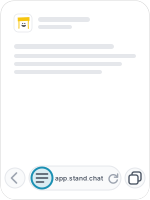
  1. Safari with the lines icon at the left of the address bar marked.

    1Tap the menu icon at the left of the address bar.
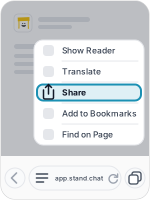
  2. Safari's page menu with Share marked.

    2Tap Share.

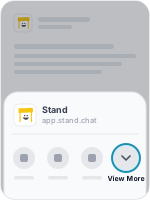
  3. The share sheet with View More marked at the right.

    3Tap View More.

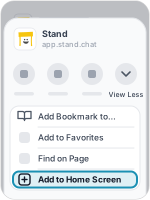
  4. The longer list with Add to Home Screen marked.

    4Tap Add to Home Screen.

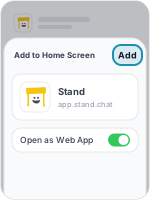
  5. The Add to Home Screen sheet with Add marked at the top right.

    5Leave Open as Web App on, and tap Add.
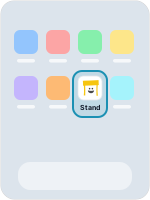
  6. The Home Screen with the Stand icon marked.

    6Now open the Stand app from your Home Screen.

  1. 7Sign in if the Stand app asks you to.
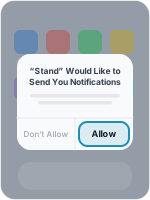
  2. The question about notifications, with Allow marked.

    8The Stand app asks to turn on notifications. Tap Turn on notifications, then Allow.

  3. 9Tap the test notification when it appears. Stand then shows that it works.

Steps checked on iOS 27.2 in November 2026.

Reading this on a computer? In the Stand app, open Notifications and choose Add your phone. It shows a code to scan with the phone’s camera.

The test

03

Test it before you rely on it.

When you turn notifications on, Stand sends a test notification straight away. Tap it. Stand then knows that notifications reach this device and that you can see them.

If nothing appears within about twenty seconds, Stand asks. It can tell two cases apart: the test reached your device but something kept it off the screen, or it never arrived. It then shows the fix for your device.

A phone in your pocket behaves differently from a phone in your hand. Test it that way once: open Notifications on your computer, lock your phone, and press Test beside the phone in Your devices.

Before you rely on notifications

  • You tapped a test notification on each device you carry.
  • You tested your phone once while it was locked.
  • Under What Stand tells you about, the chats you want to hear about are on.
  • On a computer with Chrome or Firefox, you know notifications arrive only while the browser is running.

Notifications

04

What Stand tells you about.

Open Notifications in the Stand app to choose. Tapping a notification opens the Stand app on the chat it is about.

NotificationNew chat started with you
When it is sentA visitor starts a chat while you are Available.
Can you switch it off?No. It is on whenever notifications are on.
NotificationNew chat with your Stand-in
When it is sentA visitor starts a chat that your Stand-in answers. Tap it to read along or join.
Can you switch it off?Yes. A visitor starts a chat with my Stand-in.
NotificationVisitor waiting for your reply
When it is sentA visitor in your chat has waited a while. If you do not reply soon, Stand takes the chat from you and marks you away.
Can you switch it off?Yes. A visitor is waiting for my reply.
NotificationA visitor needs your reply
When it is sentA teammate did not reply in time, and Stand passed their chat to you.
Can you switch it off?No. It is on whenever notifications are on.
NotificationYou are away from your Stand, or Your Stand-in is covering for you
When it is sentThe Stand app lost contact, or a visitor did not get a reply in time, and Stand stopped sending you new chats.
Can you switch it off?Yes. Stand marks me away.
NotificationA Stand-in stepped in
When it is sentA Stand-in took over a chat after a rep lost contact. Sent to everyone in your organization.
Can you switch it off?No. It is on whenever notifications are on.
NotificationThe name of a label
When it is sentA chat matched a label or a Product Discovery finding that is set to notify. Tap it to offer to join.
Can you switch it off?In each Stand-in’s Skills.

Fixes

05

Not getting notifications?

Start in the Stand app: open Notifications and choose Not getting notifications? It lists only the checks that apply to your device. The same checks are below.

What you seeStand says notifications are blocked
Likely causeYou, or your browser, chose not to allow them.
What to doiPhone and iPad: Settings, Notifications, Stand, Allow Notifications. Android app: press and hold the Stand icon, App info, Notifications. Chrome and Edge on a computer: the icon at the left of the address bar, then Notifications. Safari on a Mac: Safari, Settings, Websites, Notifications.
What you seeThe test arrived but nothing showed
Likely causeFocus or Do Not Disturb, or notifications are off for the browser or for Stand in your device’s settings.
What to doTurn off Focus or Do Not Disturb, or allow Stand in it. Then check the notification settings for Stand, or for your browser, on the device.
What you seeThe test never arrived
Likely causeThe network, a VPN or a content blocker. In Brave, a setting.
What to doTry without the VPN or blocker. In Brave, turn on Use Google services for push messaging under Privacy and security, then restart Brave.
What you seeNotifications stop when I close the browser
Likely causeChrome and Firefox on a computer deliver only while they are running.
What to doKeep the browser running, or use Edge on Windows or Safari on a Mac, which deliver even when not running. Your phone covers the rest.
What you seeNotifications on a Mac disappear too fast
Likely causemacOS shows them briefly by default.
What to doSystem Settings, Notifications, then your browser or Stand: choose Persistent.
What you seeOn iPhone there is no way to turn them on
Likely causeStand is open in Safari or inside another app, not as the installed app.
What to doAdd Stand to your Home Screen and open it from there. Inside another app, choose Open in Safari first.
What you seeChats with my Stand-in never notify me
Likely causeThat notification is off.
What to doTurn on A visitor starts a chat with my Stand-in.
What you seeIt worked and then stopped
Likely causeThe browser or the device took the permission away, or the device was not used for a long time.
What to doOpen the Stand app on that device. It says Notifications stopped and offers Turn on again.

Devices

06

What each device can do.

Every one of these gets notifications. What differs is whether you have to install the Stand app first, and whether notifications arrive when the app and the browser are not running.

DeviceiPhone and iPad
Install first?Yes. Notifications only work from the installed app.
How to installAdd to Home Screen, in Safari or Chrome.
Arrive when nothing is running?Yes
DeviceAndroid phone
Install first?Yes, when your browser offers it.
How to installInstall Stand on the install page, in Chrome or Samsung Internet.
Arrive when nothing is running?Yes
DeviceMac with Safari
Install first?No
How to installOptional: File, then Add to Dock.
Arrive when nothing is running?Yes
DeviceMac with Chrome or Edge
Install first?No
How to installOptional: Install Stand under Notifications.
Arrive when nothing is running?Only while the browser is running
DeviceWindows with Edge
Install first?No
How to installOptional: Install Stand under Notifications.
Arrive when nothing is running?Yes
DeviceWindows with Chrome
Install first?No
How to installOptional: Install Stand under Notifications.
Arrive when nothing is running?Only while Chrome is running
DeviceFirefox
Install first?No
How to installStand runs in a tab.
Arrive when nothing is running?Only while Firefox is running

Questions

Common reader notes

Is there a mobile app?

Yes. The Stand app installs on iPhone, iPad and Android straight from the browser, with its own icon and notifications. It is not in the App Store or on Google Play.

Do I have to be at my Stand all day?

No. When you step away, your Stand-in answers and Stand notifies you. You join only the chats you want to.

Why do I have to install it on iPhone before notifications work?

Apple only lets a website send notifications once it has been added to the Home Screen and opened from there. Until then the Stand app cannot ask.

Can I have notifications on several devices?

Yes. Turn them on separately on each device. The Notifications panel lists every device and lets you test or remove each one.

What happens if I do not reply to a visitor in time?

After about a minute your Stand-in steps in, or a teammate who is Available does, and Stand marks you away. If neither can, the visitor can leave an email address. Open the Stand app and make yourself available again when you are back.

Is this a PWA?

Yes. The Stand app is a web app that installs from the browser, sometimes called a progressive web app or PWA. You do not need to know the term to use it.

Try the guide on one real page.