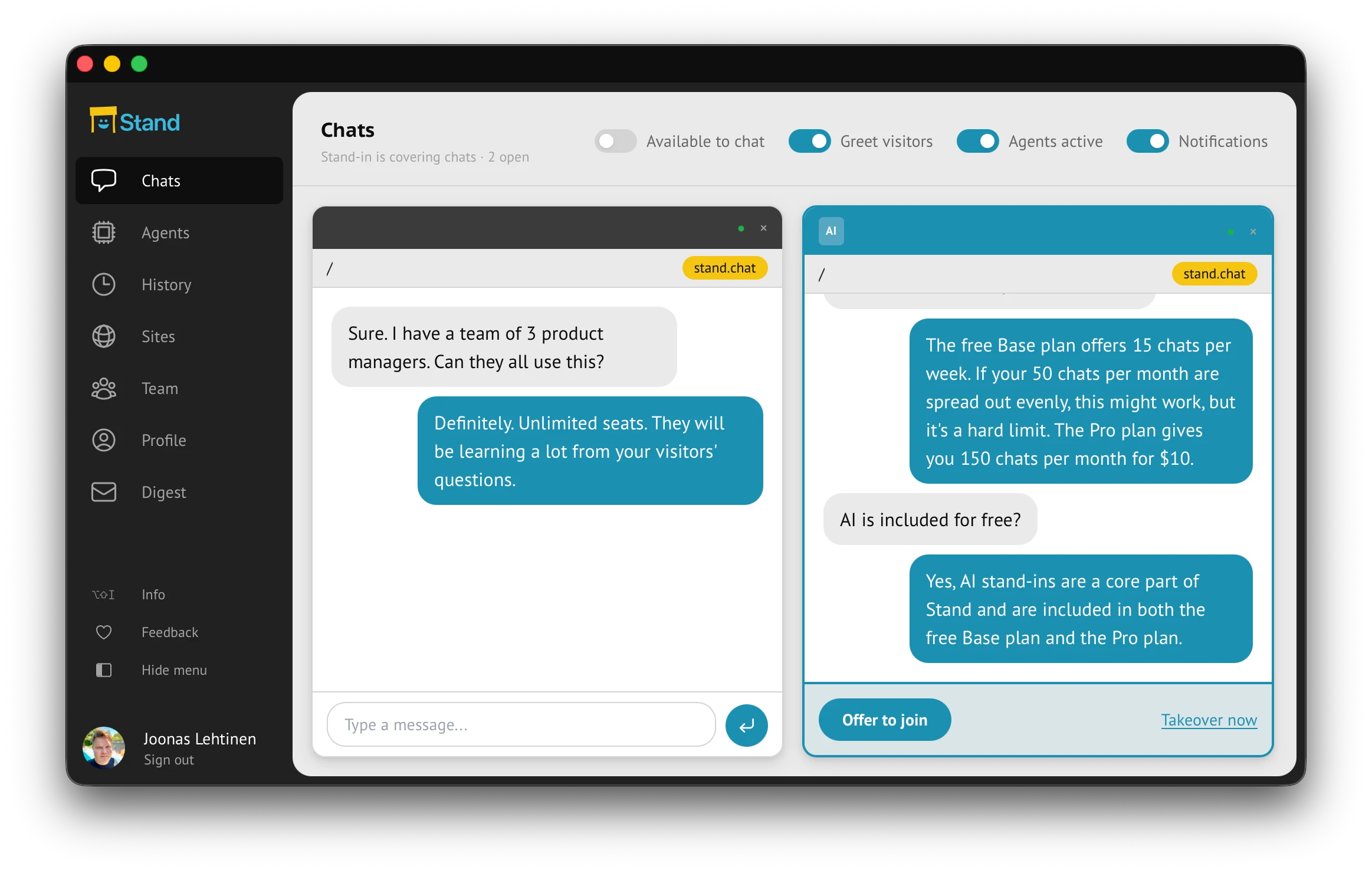
What would you like to do?
Install Stand on my website
- Ask a coding agent. Open your website project and say “Add stand.chat”. The agent uses the Stand CLI.
- Install it myself. Add the chat snippet to your website and test your first conversation.
Work with my Stand account
- Connect my AI chat (MCP). Ask “What did visitors ask this week?” or change a Site setting.
- Run commands or scripts (CLI). Upload files, export conversations, or run a report every Friday.
Explore the guide
Quickstart and seventeen chapters. Jump to what you need.
Start here
Quickstart
Install Stand yourself or with your AI agent.
Go from signup to an installed widget and a two-way test chat, with checks for the common setup problems.
Read chapterChapter 01
Start Website Conversations
Turn silent website traffic into useful chats.
Where to put Stand first, how to write a useful opening, how Stand-in coverage starts conversations, and how to judge the first week by conversation quality.
Read chapterChapter 02
Train Your AI Stand-in
Give your Stand-in the right briefing and sources.
How to brief your Stand-in with team, site, and Stand-in prompts; when to use sources; and how to keep answers accurate, specific, and in your voice.
Read chapterChapter 03
Spot the Conversations That Matter
Define the signals your team should hear about.
How labels help surface buyer intent, confusion, objections, and other high-signal moments so a rep knows which AI chats deserve attention.
Read chapterChapter 04
Join at the Right Moment
Take over directly or offer to join with consent.
How reps monitor AI conversations, take over immediately, or offer to join with visitor consent, and choose the right intervention.
Read chapterChapter 05
Capture Leads in Context
Collect follow-up details without gating the chat.
How Stand asks for name, email, phone, and follow-up intent in context without turning every visitor into a gated form submission.
Read chapterChapter 06
Learn From Visitor Conversations
Turn evaluators and skeptics into product evidence.
How visitor conversations can reveal objections, customer language, product gaps, competitor comparisons, and evidence your team can learn from.
Read chapterChapter 07
Turn Chats Into Insights
Review transcripts, reports, labels, and evidence.
How to use saved transcripts, reports, labels, digests, and captured contact details to follow up and turn chats into team learning.
Read chapterChapter 08
Scale Across Sites and Teams
Run many sites, reps, and Stand-ins from one account.
How to organize Stand across multiple sites, reps, and Stand-ins with site prompts, routing, team coverage, and account-level scale.
Read chapterChapter 09
Make It Feel Like You
Use real identity, avatars, pins, and brand presence.
How to shape the visitor-facing experience with rep identity, greetings, avatars, lapel pins, colors, launcher behavior, and Stand branding controls.
Read chapterChapter 10
Tune Chat Behavior
Add page prompts, inline chatboxes, triggers, and developer entry points.
How to test page-specific chat prompts, behavioral triggers, the Stand JavaScript API, and temporary custom JavaScript experiments.
Read chapterChapter 11
Connect Backend Systems
Give selected Stand-ins controlled access to live APIs.
How to use the OpenAPI integrations beta: import a declaration, choose safe operations, protect credentials, and attach live backend tools to selected Stand-ins.
Read chapterChapter 12
Build a Custom Chat UI
Connect your own visitor interface to Stand.
A technical guide to the custom chat UI: visitor HTTP and WebSocket APIs, session recovery, message rendering, and requirements for developers and AI coding agents.
Read chapterChapter 13
Run Stand Commands and Scripts (CLI)
Add Stand to your website with a coding agent or run Stand commands in a script.
Ask a coding agent to add Stand to your website, or use the CLI to upload files, export conversations, and run scheduled reports.
Read chapterChapter 14
Use the Public API
Authorize a workflow, read account data, and preserve settings when writing.
Choose the right API, authorize account access, read and export conversations, upload images, and preserve existing settings when making changes.
Read chapterChapter 15
Add Stand to WordPress
Set up Stand from WordPress admin, go live, and put Stand in your pages.
Install the Stand Chat plugin, connect your Stand account from WordPress admin, brief an AI Stand-in from your own pages, go live, then add Stand cards, menu links and page rules where visitors decide.
Read chapterChapter 16
Install Stand and Turn On Notifications
Put the Stand app on your phone and computer, and hear about every chat.
Put the Stand app on your iPhone, iPad, Android phone, Mac or Windows PC with pictured steps, turn on notifications, test them, and fix them when they do not arrive.
Read chapterChapter 17
Use Stand from Your AI Chat (MCP)
Ask about visitor conversations or change Site settings from your AI chat.
Connect Claude, ChatGPT, Grok Bot, Claude Code, or VS Code to your Stand account. Ask about visitor questions or update Site instructions from the chat.
Read chapterNew to Stand? A few terms
- Visitor
- Someone chatting on your website.
- Rep
- A person on your team.
- Your Stand
- Where visitors come to chat on your website. It is open while you, a colleague or a Stand-in can chat, and closed when nobody can.
- Stand-in
- An AI assistant you name and brief. It stays at your Stand when you step away.
- Available, away
- Available means you are taking chats yourself. Away means you are not.
- Coverage
- Whether a person or Stand-in can handle a new chat.
- The Stand app
- Where you answer chats: in a browser tab, or installed on your phone or computer.
- Site
- A registered website with its own installation and settings.
For controls, permissions and plan limits, see the Feature reference.