History and insights
Email digests
Email digests send a scheduled or on-demand recap of completed chat activity to each member at the scope allowed by their role.
- Availability
- All plans
- Configured in
- Dashboard → Digest
- Category
- History and insights
- Reference status
- Current
Before you begin
Plan availability: All plans; AI-generated insight sections require Pro or Business.
Prerequisite: A deliverable account email address and a cadence other than Off for scheduled delivery.
Key boundary: A digest is a recap, not a complete export. Delivery can be skipped for empty periods and on-demand sends are rate-limited.
What a digest does
Stand turns recent completed chat activity into an email recap. Owners receive organization-wide activity; other members receive their own scope, so two people in the same organization may receive different totals and conversations.
The basic digest remains available even when AI analysis is disabled or cannot be produced.
Cadence options
| Setting | Schedule |
|---|---|
| Off | No scheduled digest emails. |
| Daily | Scheduled at 08:00 UTC each day; covers the preceding 24 hours. |
| Weekly | Scheduled at 08:00 UTC each Monday; covers the preceding seven days. |
| Monthly | Scheduled at 08:00 UTC on the first day of the month; covers the preceding 30 days. |
Configure delivery
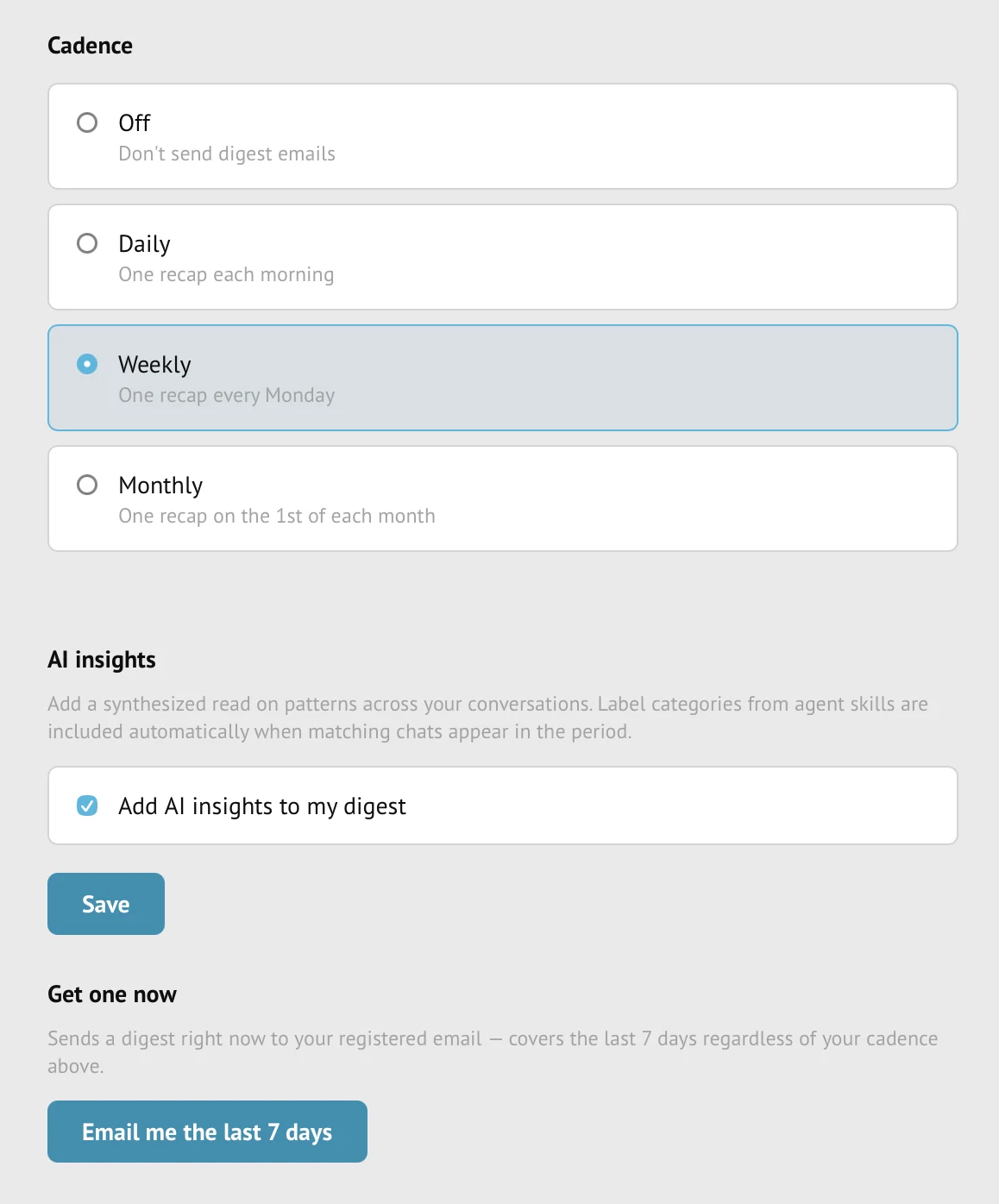
- Open Digest and select a cadence; changes save from the page.
- Enable Skip reports when there are no chats to suppress empty scheduled periods.
- Choose whether the standard digest includes product tips where the control is available.
- Use Send now to request a recap for the last seven days and confirm the destination address shown after sending.
- Use the email unsubscribe link or mail-client unsubscribe to set cadence to Off; return to Digest to resubscribe.
Period and scope rules
- Scheduled reports use rolling windows ending when the report is prepared. Monthly means the last 30 days, not the previous calendar month; delivery time can vary.
- Send now always covers the preceding seven days rather than changing the saved cadence.
- Owners receive team-wide scope; non-owners receive activity attributed to themselves.
- Skipping empty reports affects scheduled delivery and does not prevent a user from requesting an on-demand recap.
Delivery boundaries
- On-demand delivery is rate-limited to prevent repeated email sends.
- Email delivery can be delayed or rejected by the recipient’s provider.
- Turning cadence Off does not delete History or change retention.
- The digest links back to Stand for evidence and full conversation detail; it is not a replacement for JSON export.
Example
The screen below shows the feature in its normal Stand context. Labels and surrounding controls may vary with account state and plan.